
WordPress WooCommerce Wingezz Integration Plugin
Seamlessly integrate your WordPress WooCommerce store with Wingezz shipping platform. Automatically send orders to your Wingezz dashboard when customers place orders in your store.
WooCommerce Required
Automatic Order Sync
Order Logs & Tracking
Installation Guide
Follow these simple steps to integrate Wingezz with your WordPress WooCommerce store
Download the Plugin
Download the WordPress WooCommerce Wingezz Integration Plugin zip file.

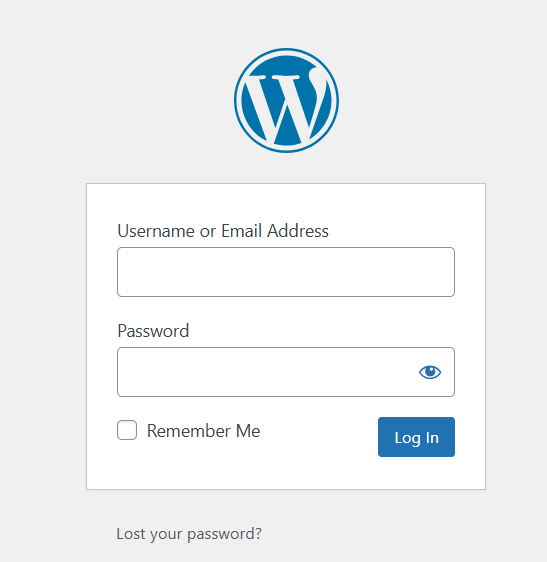
Login to WordPress Dashboard
Login to your WordPress admin dashboard with your administrator credentials.
Navigate to Plugins Page
Go to the Plugins section from your WordPress admin menu. Click on "Plugins" to view all installed plugins.
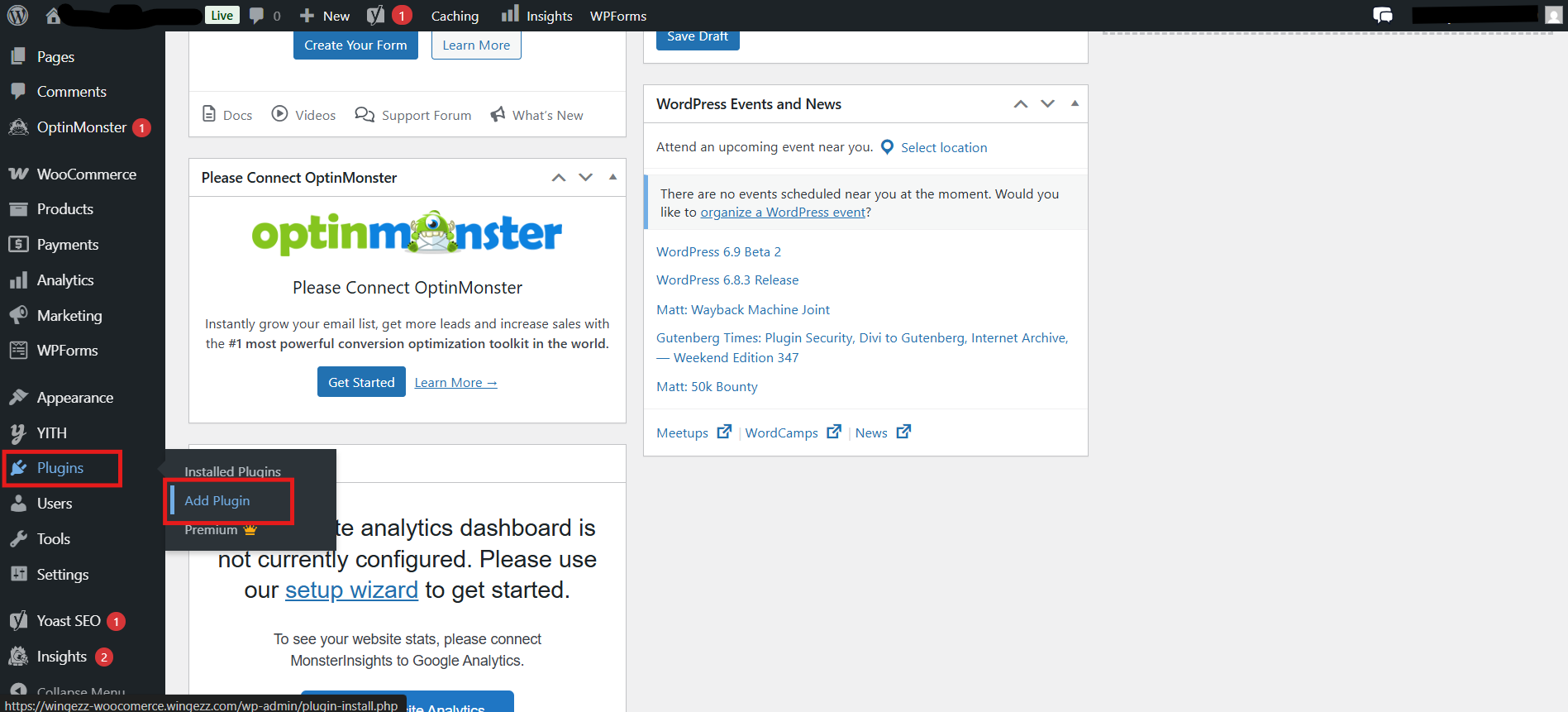
Click Add New Plugin
Click on the "Add New" button at the top of the Plugins page to install a new plugin.
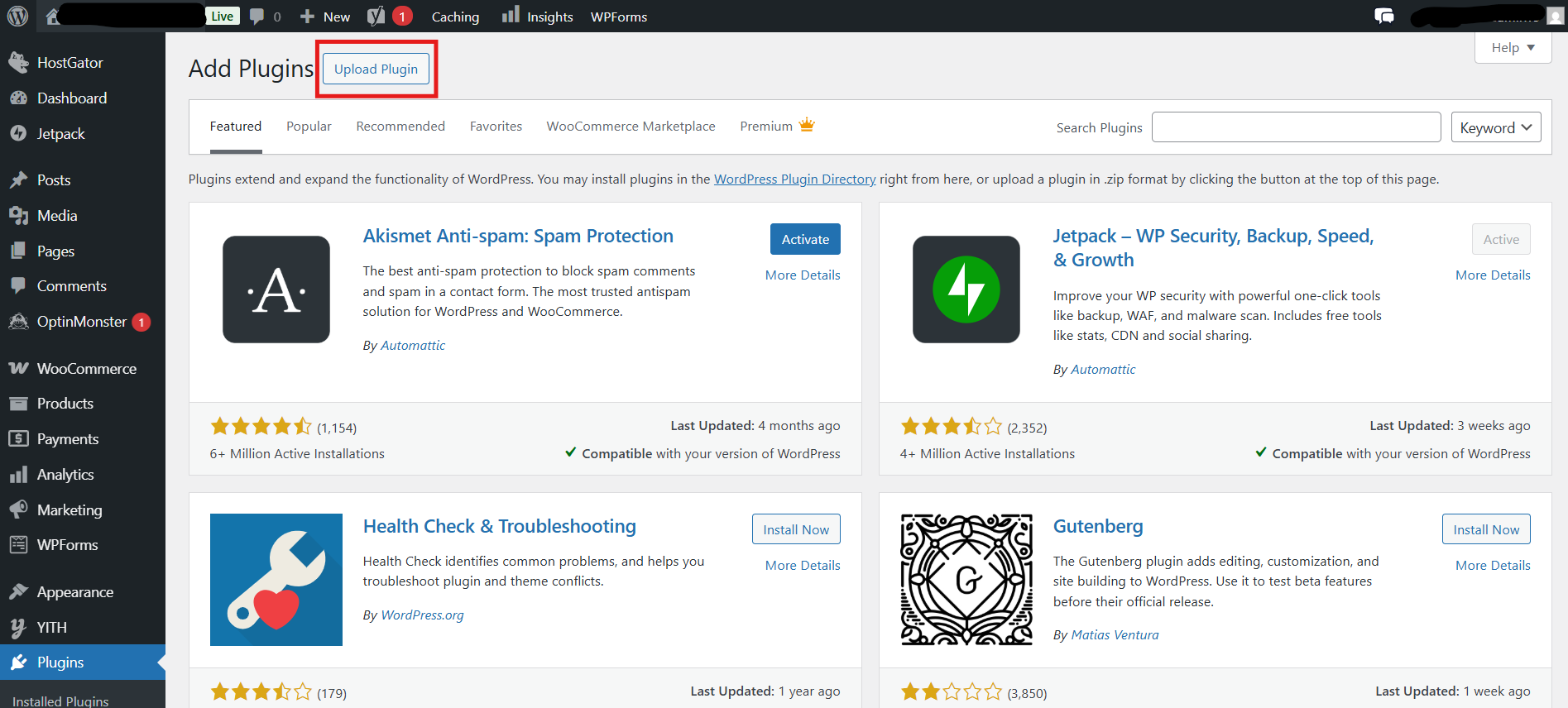
Click Upload Plugin
Click on the "Upload Plugin" button at the top of the Add Plugins page to upload the plugin zip file.
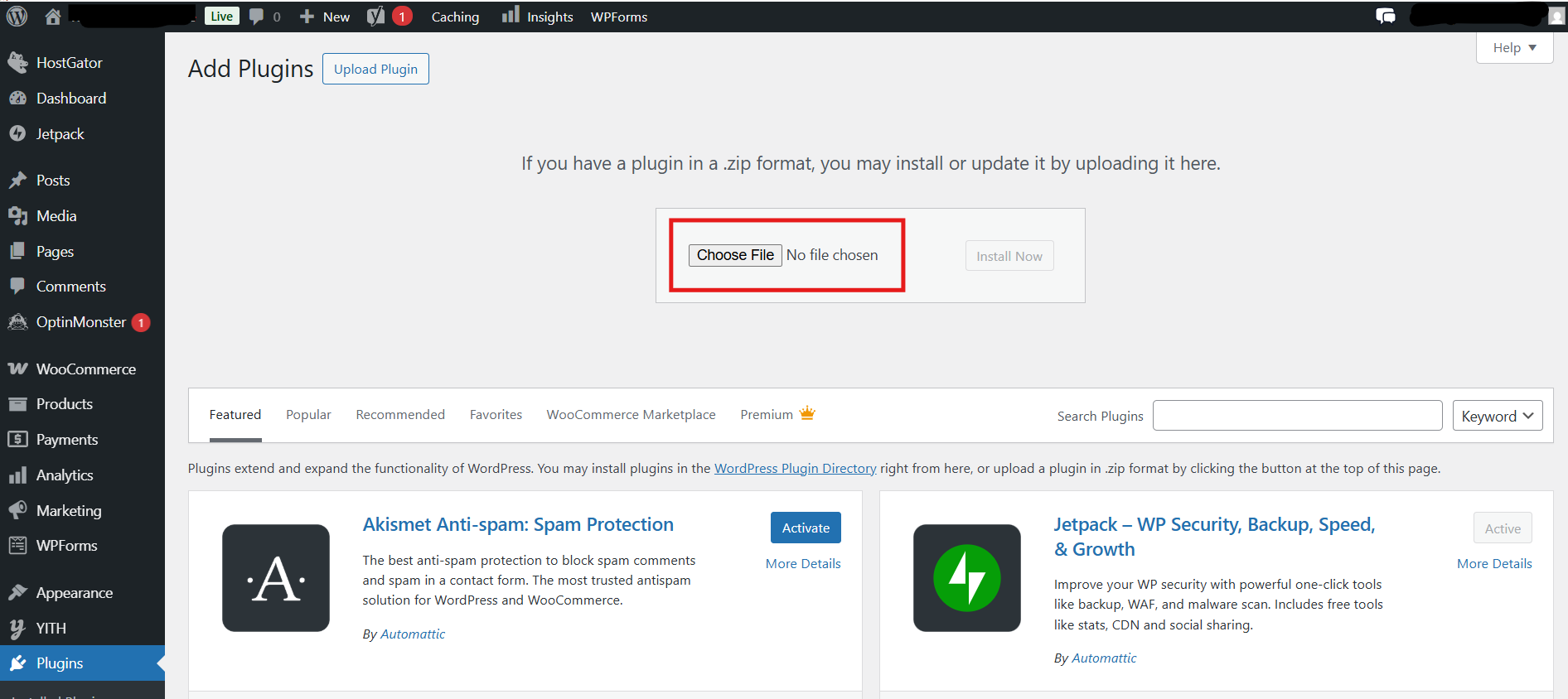
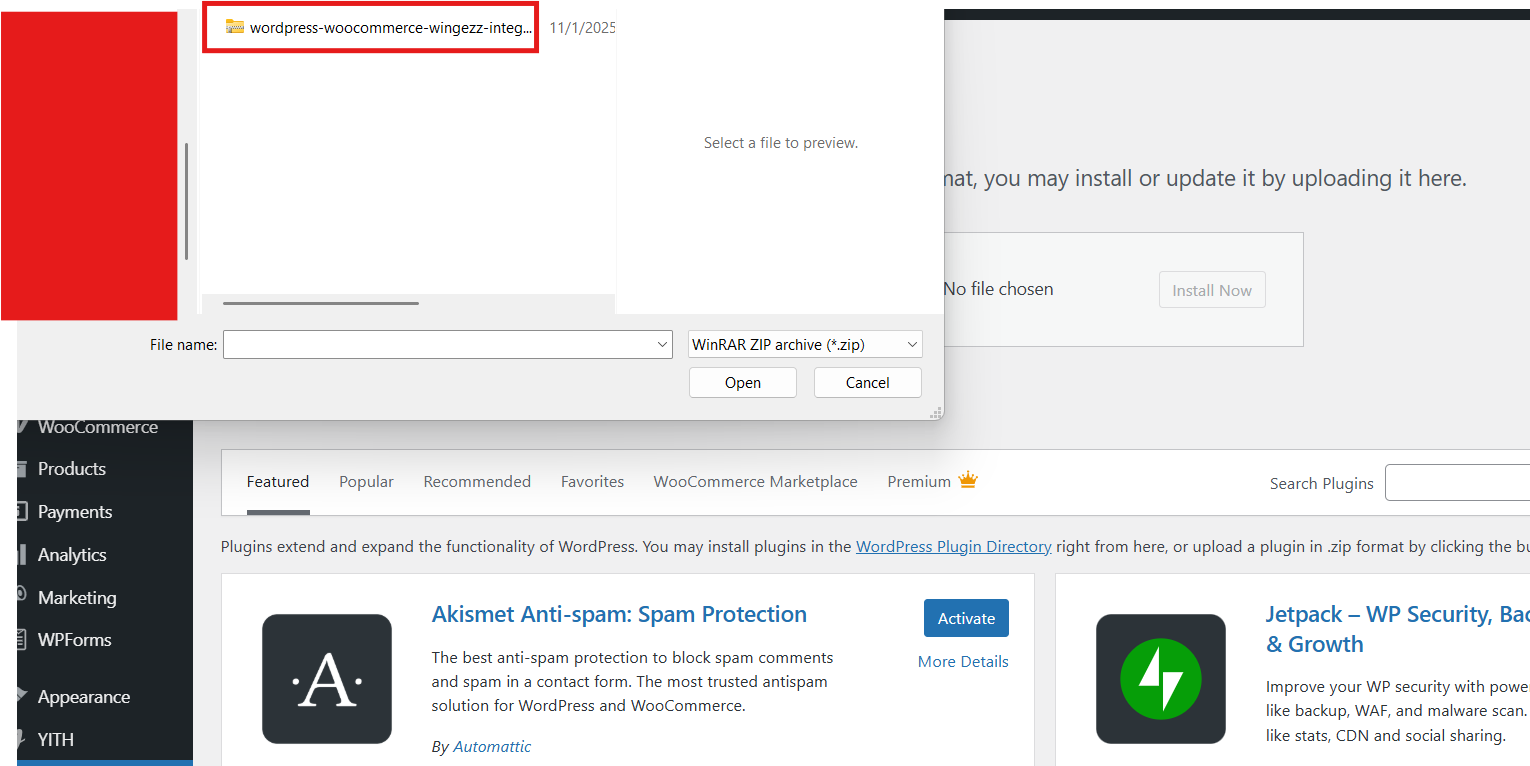
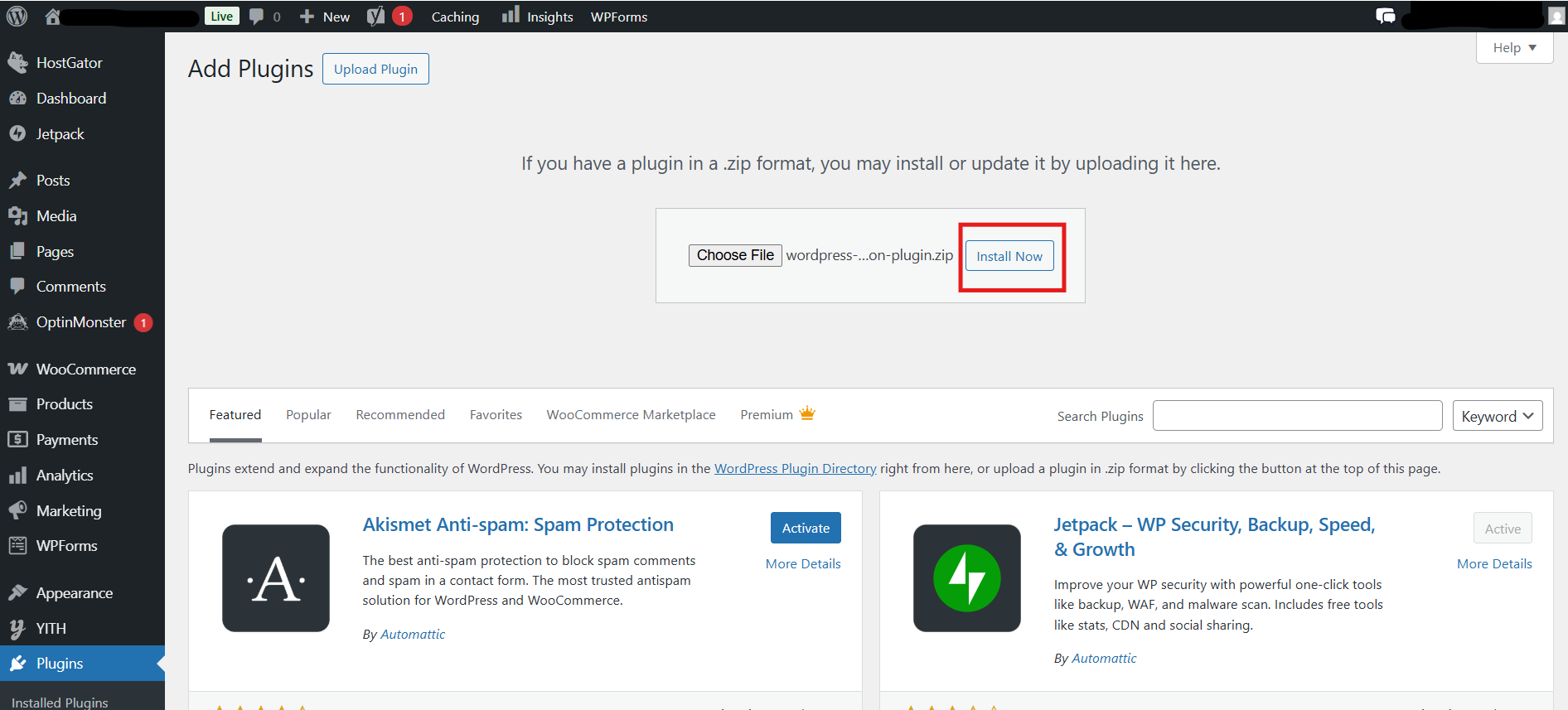
Select and Upload the Plugin File
Click "Choose File" and select the downloaded plugin zip file, then click "Install Now" to upload and install the plugin.
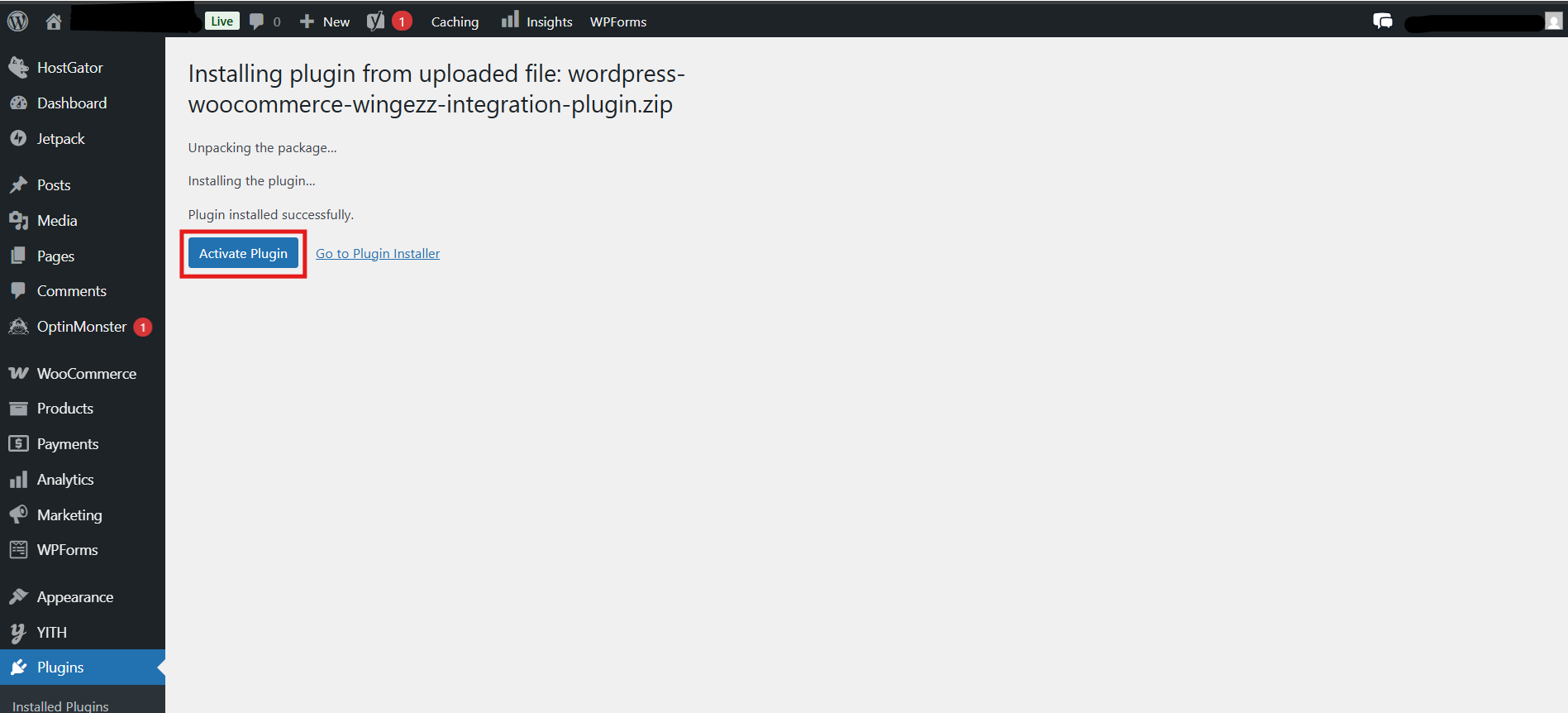
Activate the Plugin
After the plugin is installed successfully, click on "Activate Plugin" to activate it.
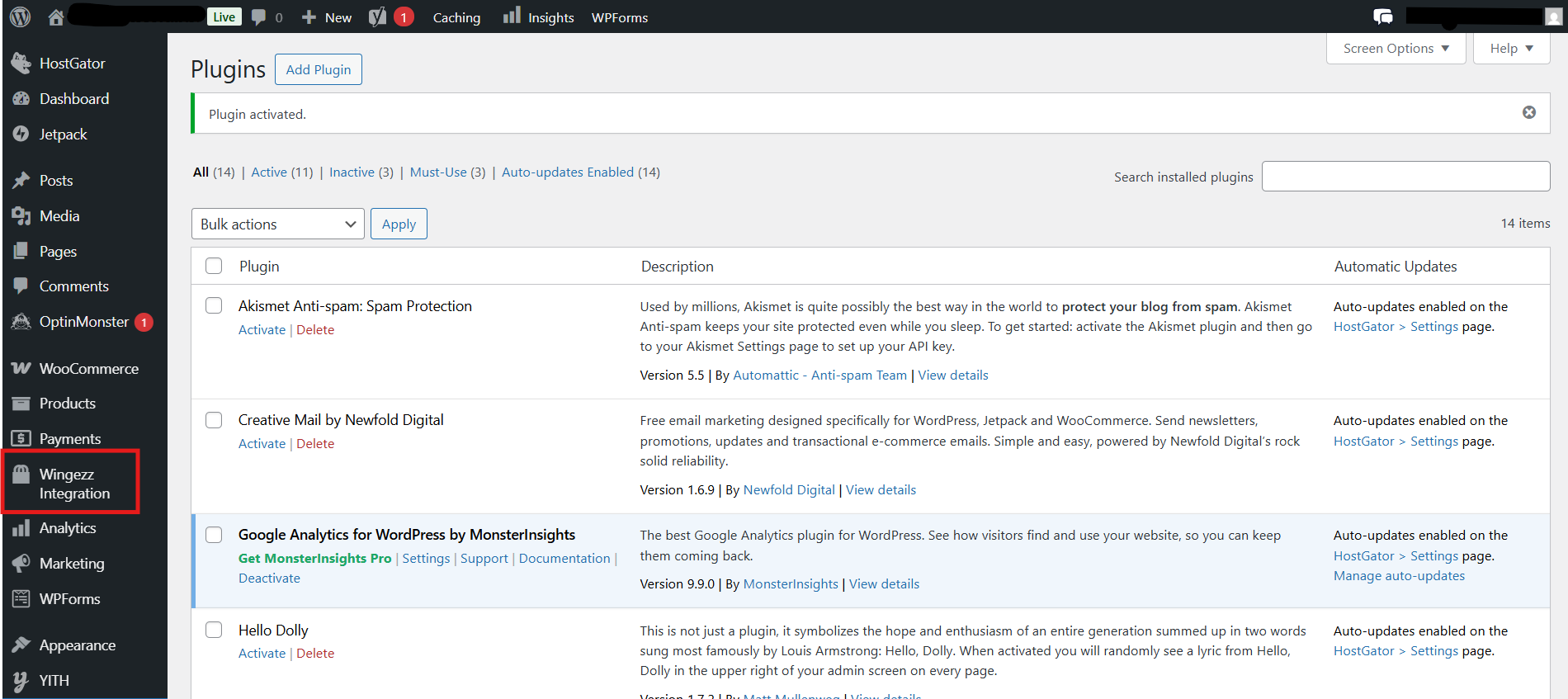
Go to Wingezz Integration Settings
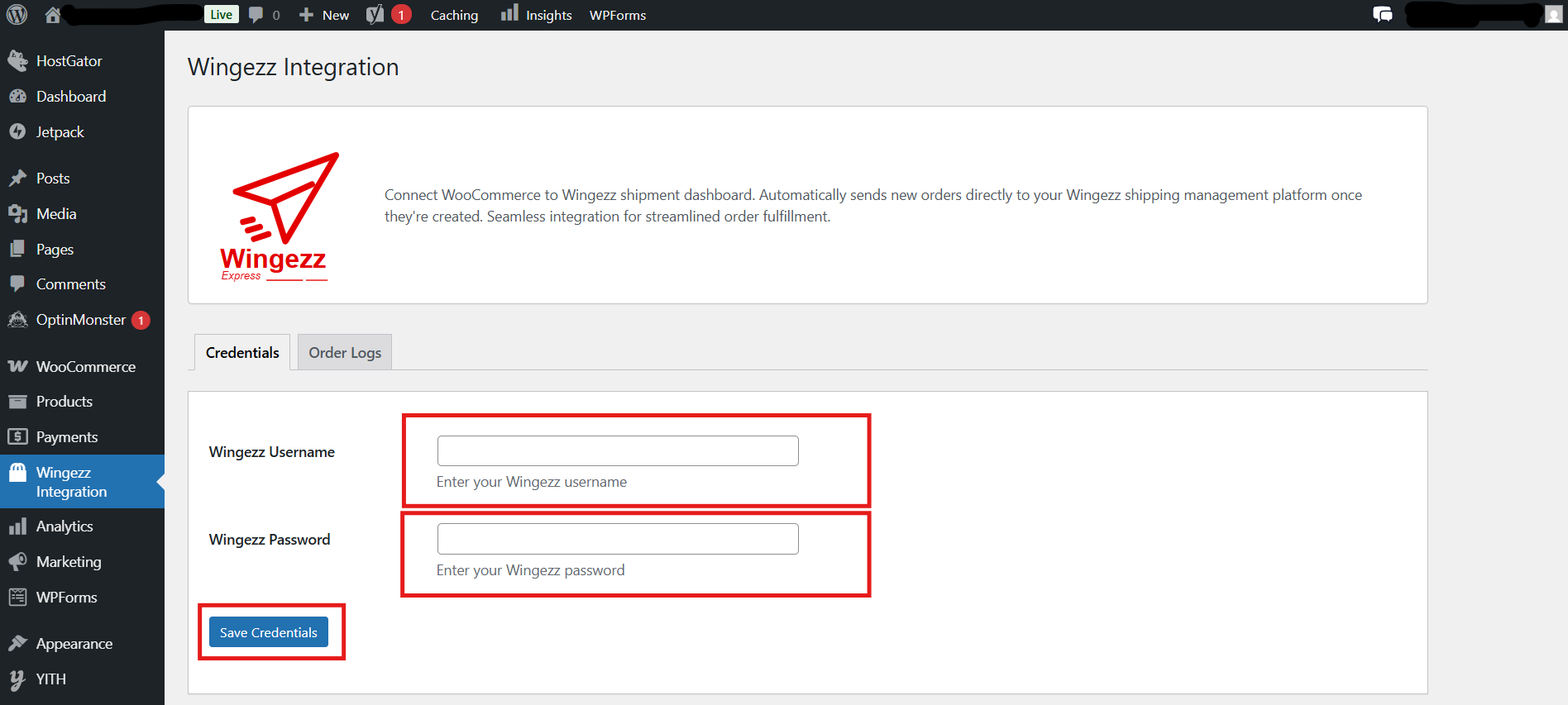
Navigate to "Wingezz Integration" section from your WordPress admin menu to configure the plugin settings.
Enter Your Wingezz Credentials
Enter your Wingezz account username and password in the plugin settings page. These credentials are used to authenticate and send orders to your Wingezz dashboard.
Orders Are Automatically Sent to Wingezz
Once configured, all new orders created in your WooCommerce store will be automatically sent to your Wingezz dashboard. You can view and manage these orders from your Wingezz account.
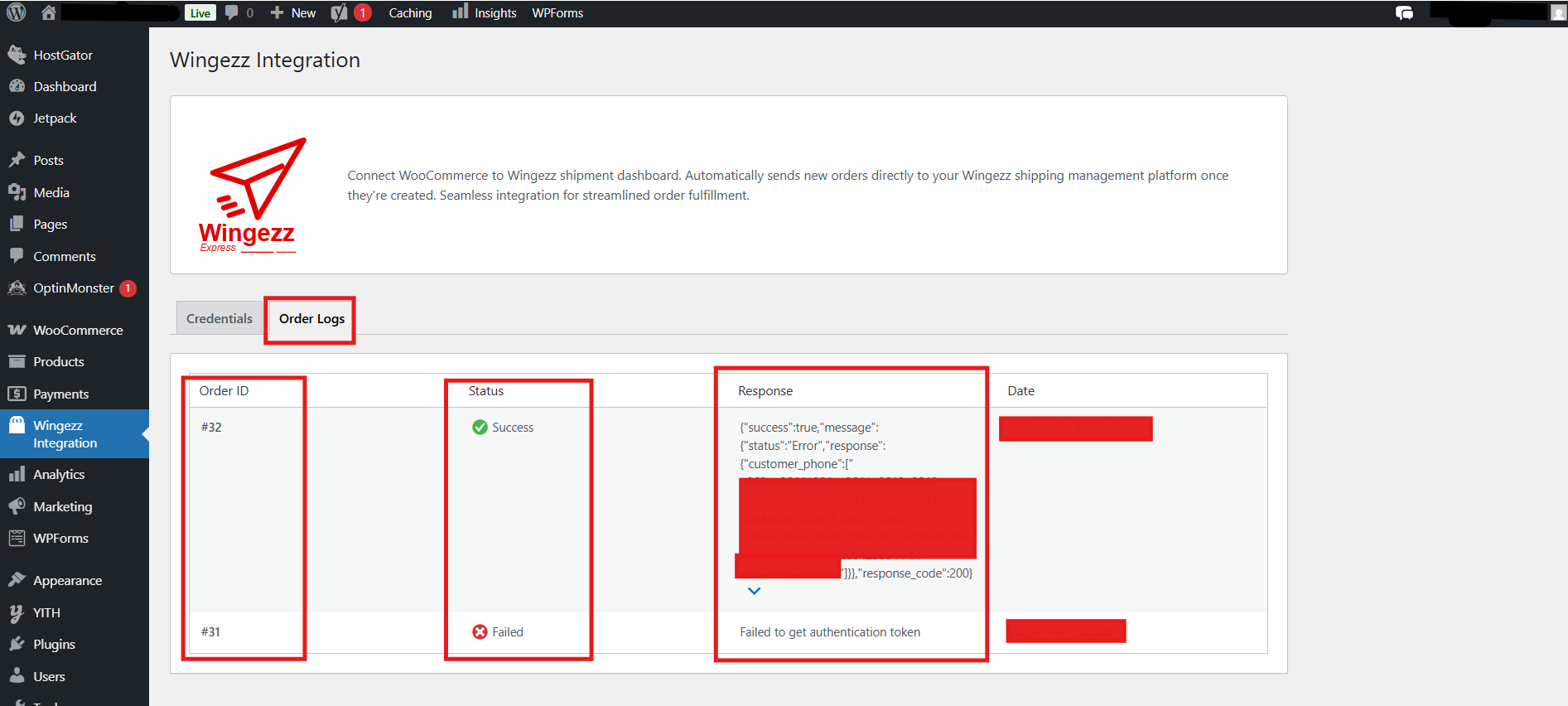
View Order Logs
You can view logs of all orders that have been sent to Wingezz from the plugin's logs section. This helps you track the status of order synchronization.
Available on WooCommerce Marketplace
You can also get the Wingezz Integration Plugin from the WooCommerce marketplace. Search for "Wingezz Integration" in the WooCommerce plugin directory.
Easy Installation
Automatic Sync
Real-time Updates
Order Logging